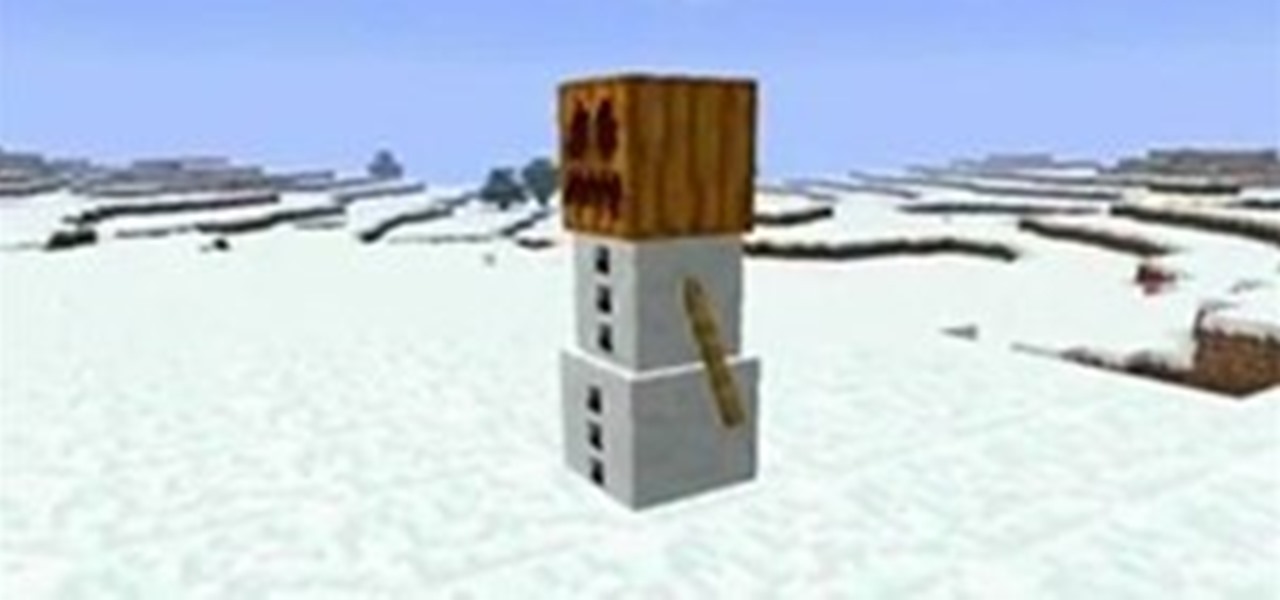


Update: this article is referring to the 1.9 pre-release beta version, which is now commonly referred to as 0.1.9, released in October of 2011.
As some of you may know, Jeb recently made the Minecraft 1.9 pre-release available to folks via a link on his twitter. Exciting, right? If you're interested in seeing what it's like, the good folks over at IGN have given us a little preview video of how it looks! But if you're interested in actually downloading, installing, and upgrading your version of Minecraft to the Minecraft 1.9 pre-release, feel free to scroll past the video and take a look at my directions.
Update: Minecraft pre-release 1.9 Version 3 is out. Click here to download and install.
If the video above made you interested, you can follow these directions (or skip ahead to a tutorial I found on YouTube) on how to install the Minecraft 1.9 pre-release yourself and give the new features a spin! These instructions are specifically for Windows folks, but the same principles apply for users who want to enjoy it on their Mac too! This guide is very similar to the one I produced for the 1.8 pre-release, so feel free to refer to those as well.
- Download the Minecraft 1.9 pre-release .jar file directly from the Minecraft server! Accept no substitutions! This is what you want.
- Go to your start button in the bottom left corner of your screen and select run (or type it into the search box).
- In the run box, type %appdata% and hit okay.
- Open the .minecraft folder, and access the bin folder inside of it.
- Rename the current minecraft.jar file to "minecraft1.8backup" or something similar, so you can always restore the file later on if you wish.
- Drag the new minecraft.jar file that you downloaded at the start of this process into the bin folder.
That's it! Now you can enjoy the 1.9 pre-release. If you're struggling with those steps, this video might give you some help:
Remember that this is a beta version of the game and you may encounter problems. If you do, you can always remove the minecraft.jar file that you installed in the bin folder and rename the old one back to "minecraft.jar" again.
Let us know what you think. Anything exciting? What do you think of the new snow golems? I'm not going to lie- I'm terrified.
Just updated your iPhone? You'll find new emoji, enhanced security, podcast transcripts, Apple Cash virtual numbers, and other useful features. There are even new additions hidden within Safari. Find out what's new and changed on your iPhone with the iOS 17.4 update.

45 Comments
hey wenn i download the minecraft.jar i get minecraft.zip and this doesn't work
Get a program called Winrar (google it, its free) then double click on the .zip file . Then a window will come up with the Jar file you are looking for :) Then you can do what the above tutorial says^^
I can't find the .jar file itself, inside minecraft.zip is ten million png files, and I don't know where to move them to or what to do with them. Just moving all the contents of the zip file to .minecraft/bin doesn't work, though
ehh did you use the right link? O.o ( http://assets.minecraft.net/1_9-pre/minecraft.jar ) when I download it.. It will come out as the jar file. no zip file at all... Which browser do you use?
can you email us a copy of the jar.. cuz i cant get it either
myemail is b.o.asenechaux1@gmail.com
the .zip files are basically hidden. you need to create a new folder wherever you put the .zip and drag the .zip contents into the folder
minecraft beta 1.9 is nice, but it lags like crazy for me:( I cant even play properly on single player...
does this work on Linux?
I think it does - Try it out :)
I tried- it's harder to do on Linux I don't think you can...
You can do it in Linux - infact, I find it alot easier than on Windows. :3
Open your Home folder (Home=your username).
Choose "View" from the top menus and select "Show Hidden Files" (or just use Ctrl+H).
Now scroll down to the M's and find ".minecraft".
Or, an easier way; while you're in your Home folder, use Ctrl+L to edit the filepath and type in "/.minecraft".
Now that you've found your minecraft folder (I'm assuming you did find it), it's the same instructions above... switch out minecraft.jar with the new 1.9 minecraft.jar, blah blah stuff.
hth
When I scroll down to the M's there's no .minecraft?
it gives me 1.8.1
ok guys i found the problem if you want the 1,9 and if it opens zip file do this
Do what? I get the zip when it downloads, and I have no idea what to do next...
open it with winrar than click "file"from the toolbar than save archive copy as... change the name to "minecraft.jar" and go to the "start"buton and serch for %appdata% than find ".minecraft" than find the folder named "bin" than drag the new minecraft.jar to the folder and its done
Golden, thank you sir!
for those who have the rar file problem DO NOT open upon promt to download insted SAVE it to your desktop, when saving if it says file type "winrar zip" change that to all files. then follow the above steps, this is what worked for me :)
i have a mac how do i download it
what page do u have to be on
It tells me, 'Failed to load Main-Class manifest attribute' from the .jar file. How fix?
HERES HOW YOU INSTALL! Okay so when you download it, it is a .zip. I KNOW! not the .jar. Right click it and click Add to archive (Winrar), it has Minecraft[1].zip for name during this part, rename to minecraft.jar. NO CAPS FOR THE M in minecraft. then put in the bin after click okay it should work. it doesnt for me tho, its stuck at loading.
ok what is the difference between pre release and the actually thing?
Pre-release is before the actual release; it may be used to dish out bugs in the game before the actual game is released. Or it may just come out early.
Okay, don't #$%@ it up. start- run- %appdata%- .minecraft - download his 1.9 prerelease minecraft jar- Move the 1.8 bacup to another folder or delete it. now drag the 1.9 prerelease and put it in the BIN folder. run it. if you have mincraft SP don''t force update. Enjoy!
what if there is no .minecraft folder
That's my problem too!
What if I play it from here: http://minecraftforfree.com/play.php
is this for mac too? the file seems different named to that of the files in my .app. if not, is there a mac pre-release?
I can't find my minecraft.jar file.
start- run- %appdata%- .minecraft -
mine stops at the update loding screen
Thanks for removing my comment...jerk...BTW my stops at update screen too...every time
When i start that run program it immediately launches minecraft instead of showing me a run-field.
Yes I seek you help. Please help me.
I downloaded minecraft off the link on top of the video,,,when i click on it it takes me strait to the winrar folder...I have downloaded winrar need help plzzzzz
i dot get it
Guys, I don't have the "bin" folder inside my ".minecraft" folder
I'm on windows 8.1 how am I supposed to install it?
Well, this post is over 3 years old.. soo
wtf it doesnt work shize from schwayne
e legau ^^
That's really awesome!
ughhhh, im confused. minecraft 1.9 is 2015, not 4 YEARS ago. what the heck?
There's an update in the beginning of the article that explains it. :)
what the fuck do you mean "bottom left corner" "start button" "run?!?" i cant play 1.9 and im really pissed so someone better tell me how the shit i am supposed to do!
No one is going to tell you anything with that attitude, especially that you're trying instructions for a version that is is over 4 years old.
Share Your Thoughts